
 Pressbook
All postsNote
Private invites get comments and reactions. Public links get reactions only. Switch modes without losing guests. No Pressbook account. No discovery feed.

You finished the pages. The next question is who can open them, and what they can do when they do.
Pressbook live share runs through Apple iCloud. The choice is private invite or public link. The modes are mutually exclusive. You can switch without wiping the guest list. Neither mode creates a discovery feed or a Pressbook account.
Menus, comments, and Manage are in how to privately share a photo album with family.
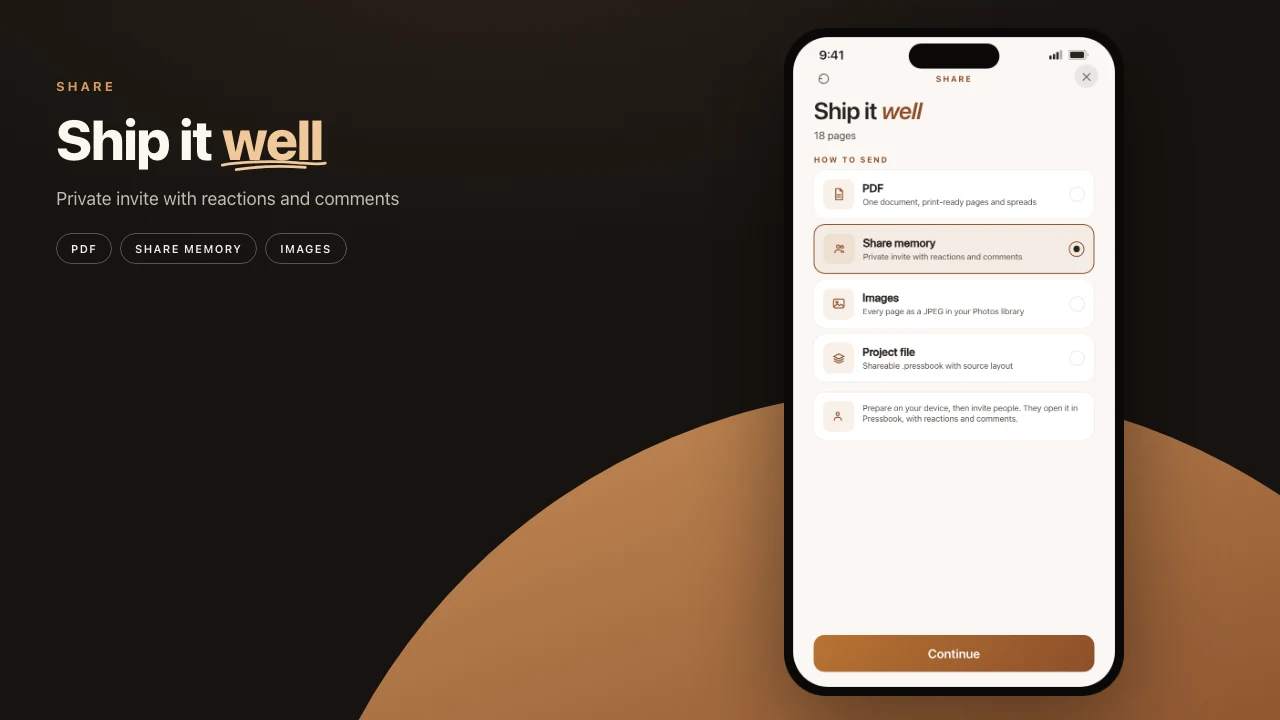
Start from Share memory
Finish an album, collage, or carousel. Open Share.
On albums the tabs are PDF, Share memory, Images, and Project file. Share > Reel plays an album like a book, cover to back cover. Choose Share memory and prepare the package into iCloud. Manage is where link access lives.
Create and edit offline. Share needs iCloud. The invite package travels as an Apple CKShare.
The two modes
| Private invite | Public link | |
|---|---|---|
| Who opens | People you add (email or phone on their Apple Account) | Anyone who has the link |
| Reactions | Yes | Yes |
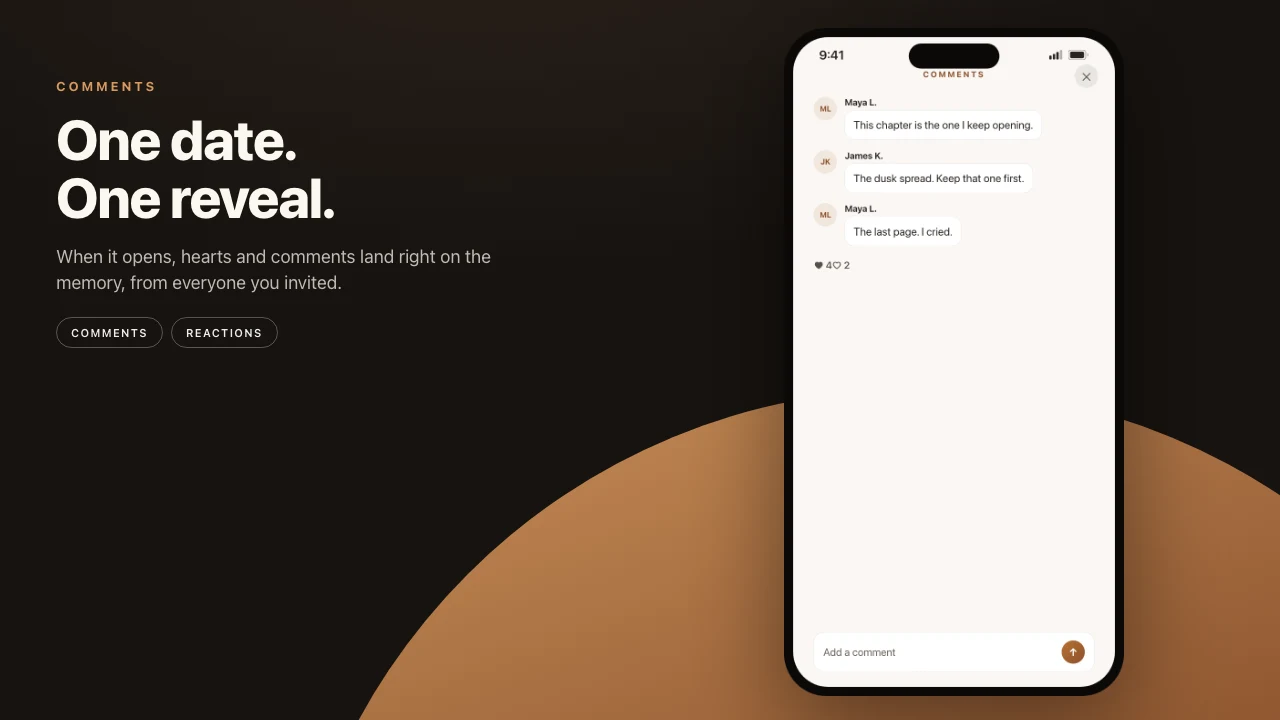
| Comments | Yes. Chat-style thread | No. Reactions only |
| Best for | Family, wedding parents, a list you trust | A wider guest list without collecting every address |
Both open in Pressbook on the guest’s device. Both work on an album, collage, or carousel. Both can pair with a Memory Capsule so everyone waits for the same day.
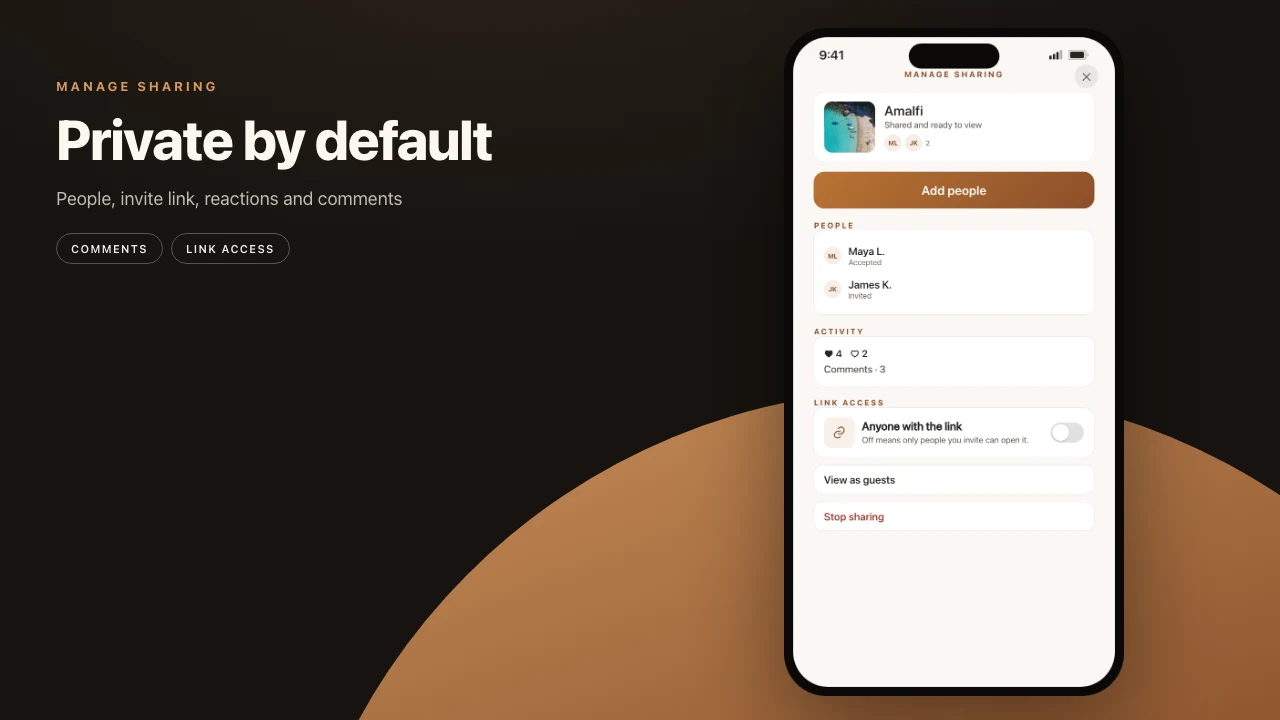
Private is the default when a forwardable link would be a problem.
When private is the gift
Use a private invite when feedback is part of the object: a note on page 4, page-by-page reactions, a Manage list that shows who joined.
Wedding parents without a third-party cloud account. A birthday handoff. A quiet family book. In Manage, Anyone with the link stays off. The caption is honest: only people you invite can open it.
When a public link fits
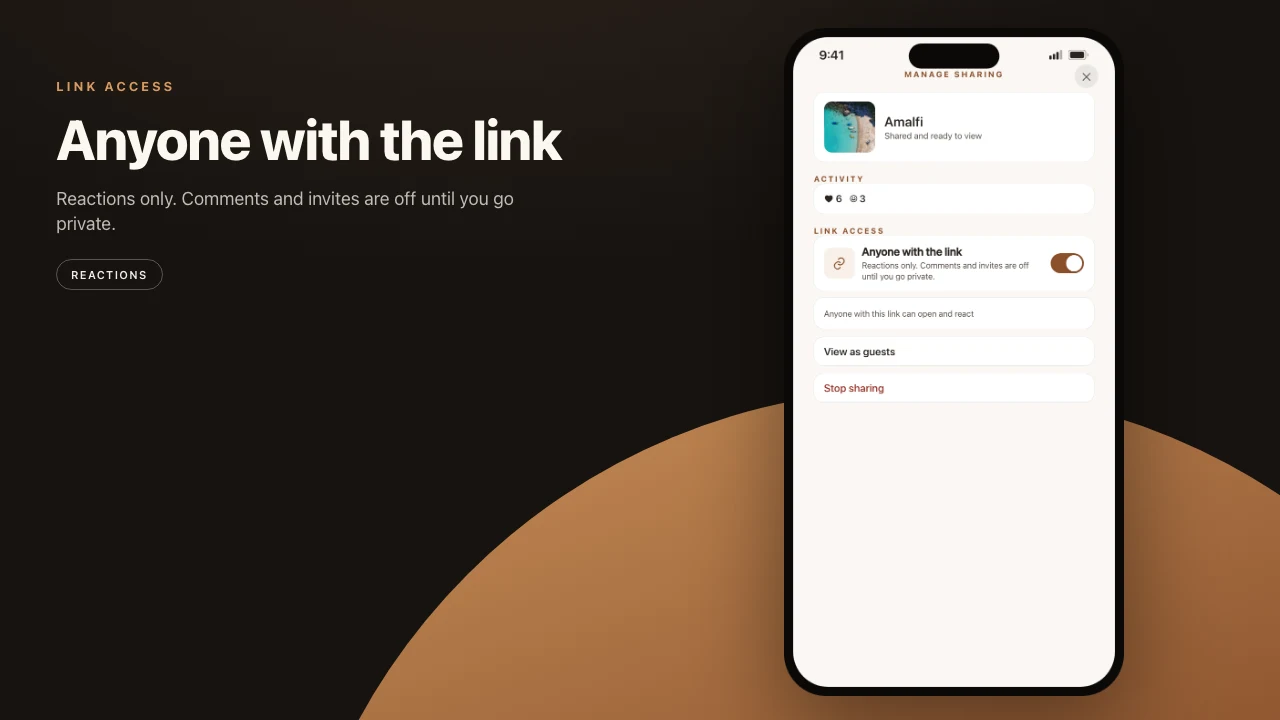
Use a public link when the list is long or fluid. Extended family. Classmates. Anyone who was at the party. They react. They do not fill a comment thread. You still control Stop sharing.
Turn Anyone with the link on and confirm. The caption becomes: anyone with this link can open and react. Comments and named-invite management stay off until you go private again.
There is no explore tab of strangers’ albums. The only people who see the work are people who receive your link or your private invite.
Switching, updates, stopping
If you switch modes later, confirm the change. Guests you already invited stay on the list. What they can do follows the active mode. Public joiners lose access when you return to private. Archived private invitees and comments come back on that path.
Owners can Send update when the local project changes, View as guests, and Stop sharing. Stop sharing revokes access. The project stays on your device.
Sharing, capsules, reactions, and comments are not Pro-gated.
Versus a chat dump
| Job | Prefer |
|---|---|
| Finished pages plus reactions | Private invite, or a public link if the list is wide |
| Raw files for someone to edit | Files or Photos, not Share memory |
| An infinite public gallery | Not Pressbook |
Design and export stay on-device either way. How to make the book. No Pressbook account to create or share. Analytics stay opt-in and off by default.
If they do not have an iPhone, a public link plus a PDF is the honest fallback.
Steps
- Finish the album, collage, or carousel.
- Open Share and choose Share memory. Prepare the package.
- Keep Anyone with the link off for a private invite. Add people by email or phone.
- Or turn the public link on when the list is too wide to name.
- Send an update when the local project changes. Stop sharing when the gift is over.
Make the album on iPhone or iPad, then share it from the same project.