 Pressbook
All postsNote
Most consumer labs are happy at 300 DPI. Many pro labs ask for 600. Pressbook exports Everyday at 300 or Archive at 600 DPI up to 6000 px, from the same project.
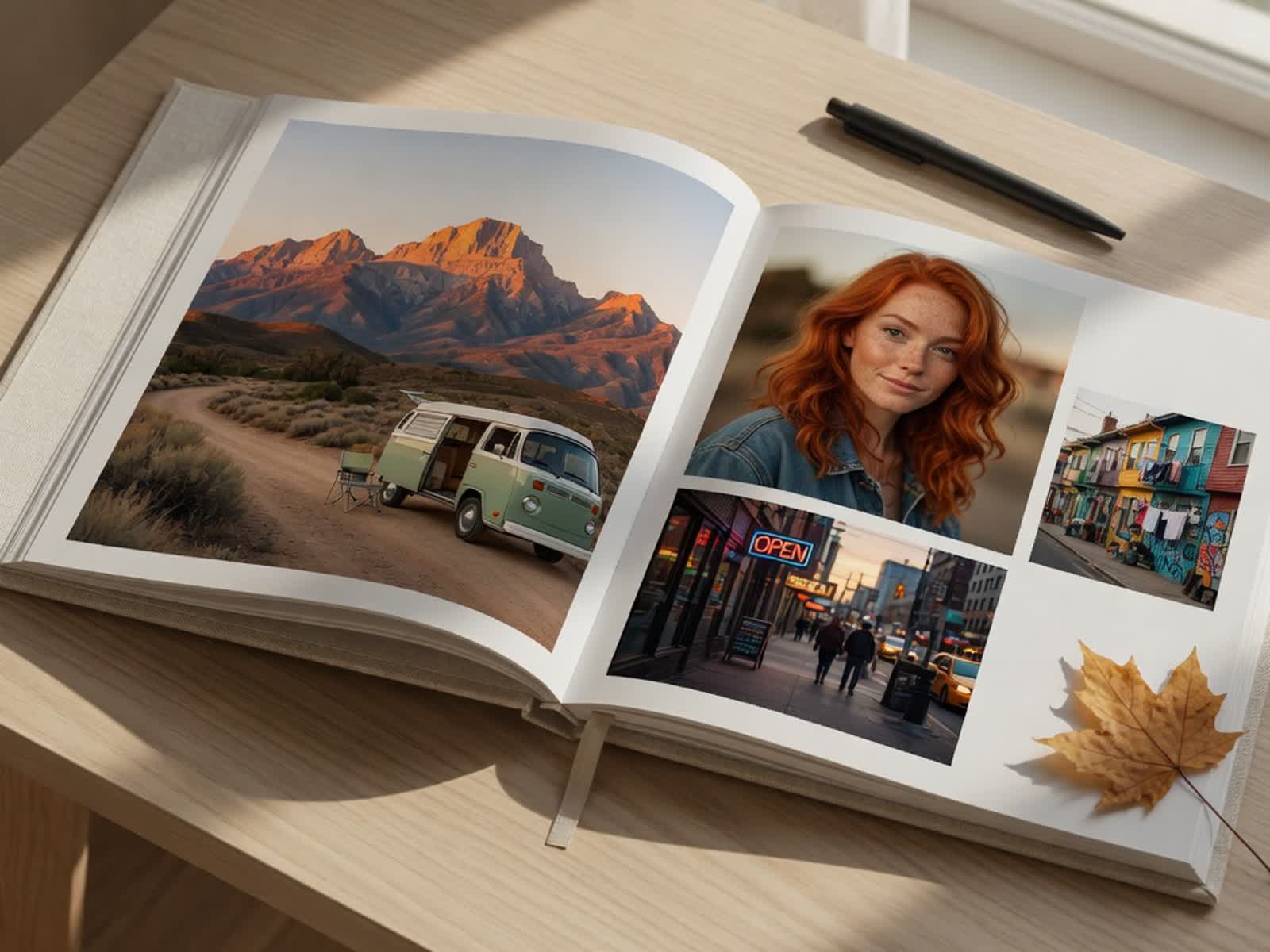
The photos look right. The spreads feel strong. Then the lab asks: 300 DPI or higher?
Most people reach for 300 because every consumer service calls it the standard. It is safe. It works for most books. A lot of professional photographers and higher-end labs still prefer, or request, 600 DPI when the result will be looked at closely.
The difference is measurable. With Pressbook you can deliver either tier from the same project. No upload. No rebuild. Free export is screen resolution with a small watermark, on albums of up to 20 photos. Everyday (300 DPI) and Archive (600 DPI, up to 6000 px on the long edge) are Pro: 1,000 photos, $4.99 a month, $29.99 a year, or $79.99 once. See pricing. No account.
What the numbers mean on the page
DPI here is pixels per inch embedded in the PDF at the final print size. It is how much image data the lab receives for each physical inch of paper.
At 300 DPI you get the long-standing industry standard. For books viewed at a normal distance, it has been crisp for decades.
At 600 DPI the PDF carries four times the pixel information for the same physical page. The printer has more data for skin, fabric, hair, small type, and gradients. That matters more on large pages or when someone leans in.
Raising the DPI never fixes a soft source photo. It only hands the printer everything you actually captured. Sharp originals at 300 already look excellent. 600 is headroom.
On a typical coffee-table book at arm’s length, 300 holds up. 600 pays off on larger pages, close viewing, or a later crop or enlarge.
300 vs 600 at a glance
| Factor | Everyday (300 DPI) | Archive (600 DPI, up to 6000 px) |
|---|---|---|
| Pixels per page (square 12×12") | 3600 × 3600 | 6000 × 6000 (the cap; 8×8 and 10×10 pages get the full 600) |
| Typical 32-page square file | 70-90 MB | 100-150 MB (not a full 4×, because of source limits) |
| Standard for | Most consumer labs and normal viewing distance | Pro labs, close inspection, large formats, archives |
| File handling | Smaller, faster exports and uploads | Larger, still practical |
| Lab acceptance | Industry standard everywhere | Preferred or required by many high-end places |
When to choose each
Use Everyday (300 DPI) for family albums, client previews, a standard coffee-table book, or any lab that has never asked for more. Most printed photo books look excellent at this resolution when the sources are sharp and the pages are viewed at a normal distance.
Reach for Archive (600 DPI, up to 6000 px) when:
- The lab says print-ready, 600 DPI, or higher resolution
- The book is large format, layflat, or will be looked at up close (weddings, portraits, product albums)
- Fine textures, skin, small overlaid type, or delicate detail carry the page
- You want a master you can reprint or crop years later
Many pro photographers default to the higher tier for any job heading to a good lab. It costs a bit more storage and time. It removes the “did I send enough pixels?” worry. Both versions come from the same master project.
Real file sizes
The math looks simple: square 12×12" at 300 DPI is 3600×3600 pixels per page. At 600 DPI that doubles to 7200×7200, four times the pixels. Pressbook’s Archive caps the long edge at 6000 px, so a 12×12 page lands at 6000×6000.
File sizes do not jump 4×. The PDF embeds JPEG-compressed photos drawn from the camera-roll originals (often around 4000 px on a side) and the renderer caps pages at 6000 px on the long edge. The in-app estimator follows that real behavior.
For a typical 32-page square album:
- Everyday (300 DPI): around 70-90 MB
- Archive: typically 100-150 MB, a bit higher or lower depending on the photos
Longer albums and landscape or portrait formats grow from there. A 60-page 18×12 album on Archive can reach a few hundred MB. The app shows the live estimate for this project before you start and pre-checks free space. Exports write atomically: a full clean PDF or nothing.
Everything renders locally with the same page renderer as the live preview, scaled to the target pixels. No uploads. No server recompression.
What labs actually say
Industry consensus from commercial printers, photo-book services, and pro labs is clear: 300 DPI is the standard target for photo books.
Most consumer services (Mixbook, Shutterfly, drugstore labs, many local printers) design their workflows around 300 PPI images. They will print a clean 300 DPI PDF without complaint. They often downsample anything higher internally.
Higher-end or fine-art printers sometimes ask for higher-resolution files, or “print-ready” at 600 DPI, when the book will be examined closely, when the pages are large, or for archival work. They can always use the extra data.
A few patterns from working photographers and lab guidelines:
- Send at least what they ask for. If the spec says 300, a proper 300 DPI PDF sized to the final book is usually perfect.
- Sending 600 is almost always safe. Labs that want lower will resample. The extra pixels give their process more room for sharpening and color work.
- The real gotchas are wrong page dimensions, low-res sources stretched too big, or a missing color profile. RGB is the standard.
If you are unsure about a specific lab, export the Everyday version first and send a sample. Then re-export the identical project at Archive if they want more. The editable .pressbook file lives on the device, so this takes minutes.
How Pressbook gives you the choice
You build at the final physical dimensions: square 12×12", landscape 18×12", or portrait 12×18". The layout engine works in those real-world sizes from the start.
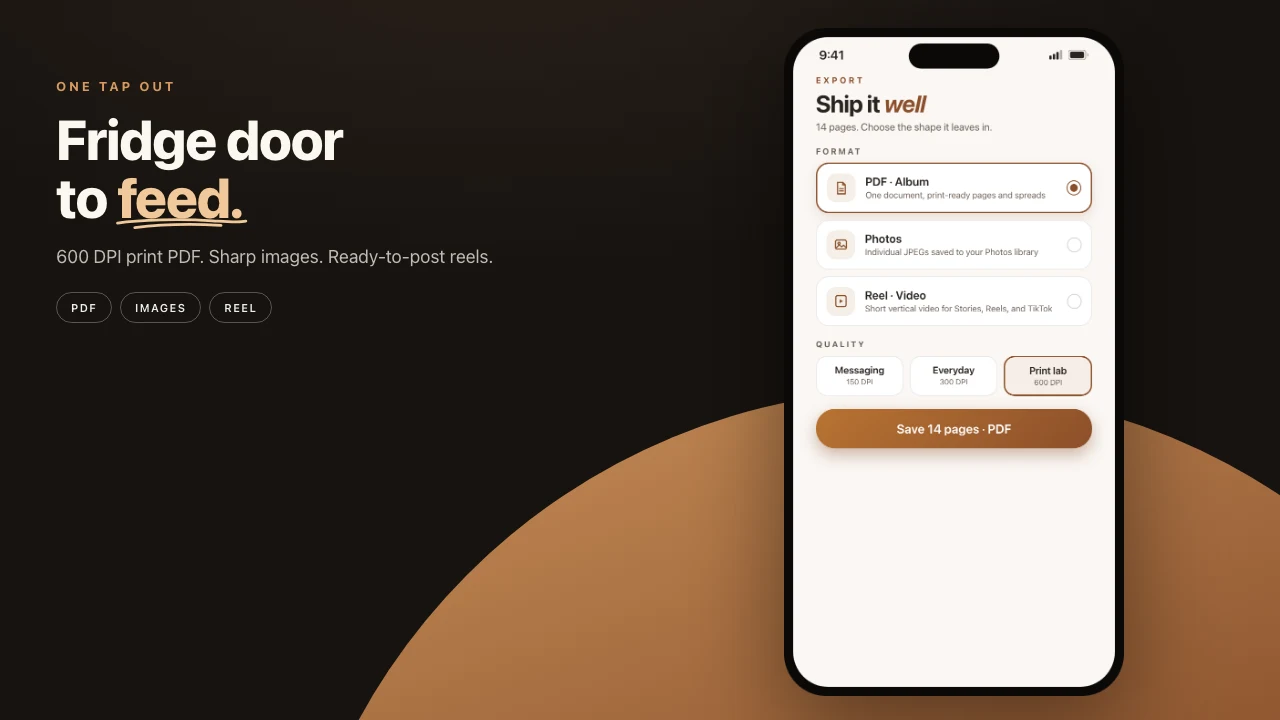
When you export a PDF, the sheet shows three labels:
- Screen (150 DPI): tiny files for texts and quick shares. Never for print.
- Everyday (300 DPI): the industry standard most consumer services expect.
- Archive (600 DPI, up to 6000 px on the long edge): the largest file, for the pro labs and fine-art printers that want more.
Page dimensions in the PDF match the chosen print size at the selected DPI. For a 12×12 album that means 3600 px pages on Everyday and 6000 px pages on Archive. An 8×8 or 10×10 album gets the full 600 DPI.
You choose Archive, the pages render at 600 DPI up to the 6000 px cap, from the original full-res photos.
Pick the final print size when you create the album. Curate and edit at full source quality. Export a test at Everyday (300 DPI) and send sample spreads, or the full PDF, to the lab. If it passes, or this is a casual project, stop. For anything that matters, re-export the same project at Archive. Every creative decision stays identical. Only the pixel density changes.
Change a caption or swap a photo and re-export either resolution in minutes. There is no cloud service to re-process.
When a lab receives an Archive PDF from Pressbook, every pixel started on the phone and stayed there until you chose to share the finished file. Nothing was uploaded, resized on a server, or re-compressed in someone else’s pipeline. Keep the .pressbook project as the master. A reprint in two years is another export, on Archive or Everyday.
How to export a print-ready PDF from iPhone. If the album is not built yet, start with how to make a photo book on iPhone.
Start on iPhone or iPad. Make the album, then export the tier the job actually needs. Free, no account, nothing uploaded.