 Pressbook
All postsHow-to
Export a print-ready photo book PDF from the iPhone, 300 DPI and up. Live size estimate, atomic write, no upload. Originals stay on the device until you send the file.
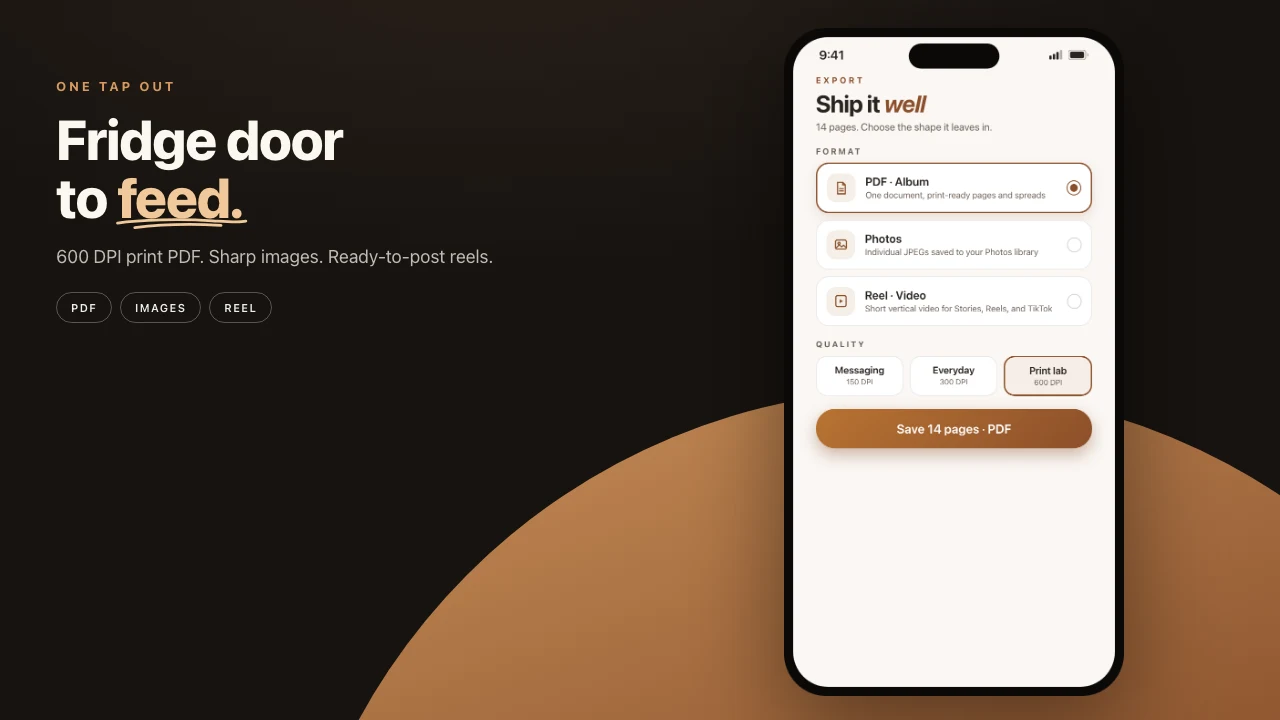
Export a print-ready PDF from the iPhone without uploading the roll. Design on the device, then write one file at print resolution, 300 DPI and up, with DPI metadata the lab can read. Originals stay on the phone until you send that file.
Most apps upload the library, re-compress on the way, and hope the print looks like the preview. Pressbook uses the same render chain for the live preview and the PDF, so what you signed off is what the lab prints.
Free albums stop at 20 photos and export at screen resolution with a small watermark. That is for checking the story. Print DPI is Pro: 1,000 photos, $4.99 a month, $29.99 a year, or $79.99 once. See pricing. No account.
Lock the print size before you start
The size you pick at creation is the geometry the layout engine uses for every spread. Change it later and you usually start over.
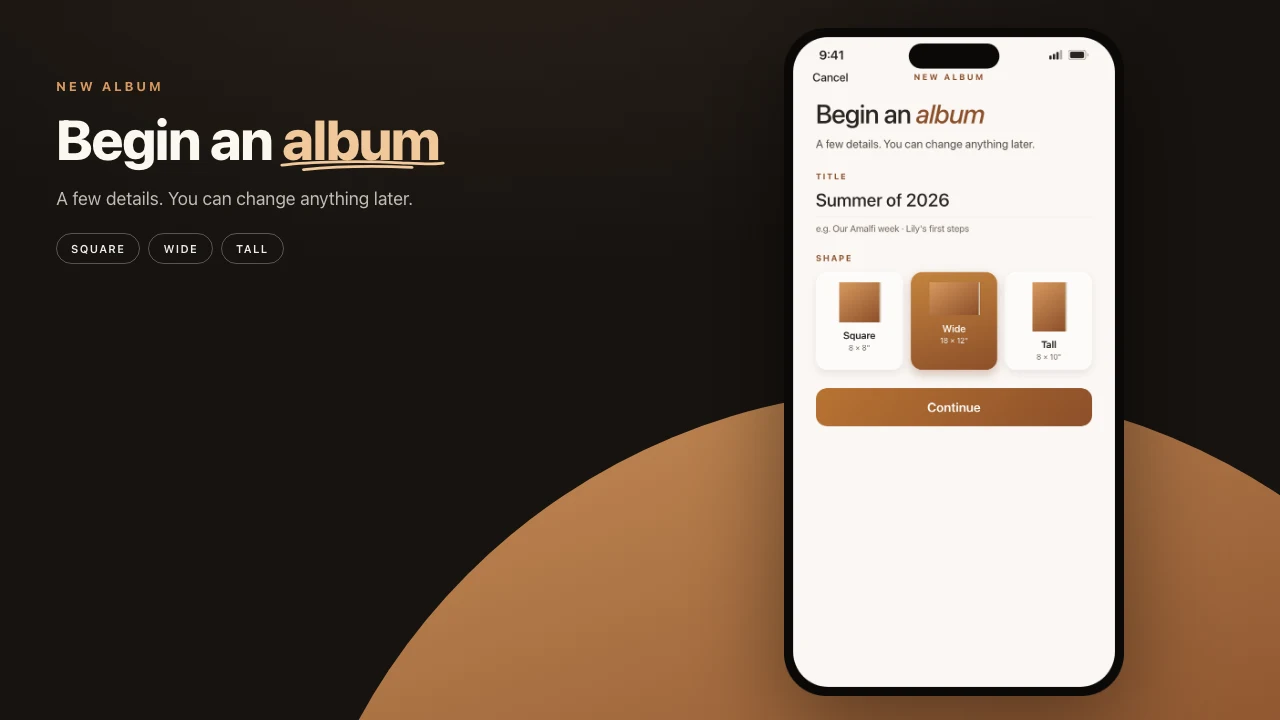
Pressbook comes in three shapes, each in three sizes labs already know. The largest of each:
- Square (12×12"): 3600×3600 px at 300 DPI base. The everyday shelf book.
- Wide (18×12"): 5400×3600 px. Wide spreads for groups, coasts, sequences.
- Tall (12×18"): 3600×5400 px. Tall pages for people and buildings.
The smaller sizes are 8×8 and 10×10, 12×8 and 14×11, 8×10 and 11×14. iPad and Mac add more trims on a size slider.
The picker shows the real aspect ratio. Choose from the photos you actually have. Templates, spacing, and export all build to those physical inches.
The three quality tiers
Quality lives on the Share sheet. It is not buried in settings.
- Screen (150 DPI): Small files for a thread. Never send this to a printer.
- Everyday (300 DPI): The consumer baseline most labs and drugstores accept. Fine for a shelf book viewed at arm’s length.
- Archive (600 DPI, up to 6000 px): The largest file. Pages render at 600 DPI up to 6000 px on the long edge, so an 8×8 or 10×10 album gets the full 600 DPI and a 12×12 page gets 6000 px (500 DPI). Skin, hair, fabric, small overlaid type, and fine patterns have more data left after the lab’s own processing. Many pro labs ask for higher-res files, or want the headroom for large pages and reprints.
The renderer scales each page to the target DPI using the album’s real inches. The PDF carries the correct metadata. The lab gets a standard file.
300 DPI is what most people ship. Archive is what you reach for when the prints matter and you want every pixel the phone will render.
| Tier | DPI | Best for | Approx size (32-page square) | Pro |
|---|---|---|---|---|
| Screen | 150 | Threads, quick previews | Very small | No |
| Everyday | 300 | Consumer labs, shelf books | 70-90 MB | Yes |
| Archive | 600, up to 6000 px | Pro labs, large prints, fine detail | About 100 MB | Yes |
Real file sizes and the safeguards
The app estimates size live from page count and format. A 32-page square album lands roughly here on most devices:
- Everyday (300 DPI): 70-90 MB
- Archive: about 100 MB, a third larger
Larger albums and landscape spreads grow fast. A 60-page 18×12 album on Archive can reach a few hundred MB. The estimator is conservative. It updates when you change quality.
Before rendering starts, export preflights real free space. It refuses early with a clear message instead of failing halfway.
The write is atomic. The PDF lands in its final location only after the full render succeeds. Power loss, background expiration, or thermal throttle either gives you the complete file or cleans up and leaves nothing. No partial PDFs.
Export the print PDF
- Finish the layout. Check every spread in the reader.
- Tap Share in the toolbar.
- Choose PDF. It starts on Album spreads, one spread per page. Pick Pages if the lab wants single pages.
- Tap Archive, or Everyday if the lab prints at 300. Confirm the live size estimate. On Pro the watermark is already gone.
- Check the format badge matches the size you locked at creation. The renderer uses those exact inches, at 600 DPI up to 6000 px on the long edge.
- Tap export and let the phone finish the file.
- Save to Files, AirDrop to a Mac, or send the PDF the way the lab already takes files.
While it runs, a progress pill shows page-by-page timing. Photos prefetch in the background with bounded memory. A Live Activity starts on the Lock Screen and Dynamic Island, so you can lock the phone. If the device gets critically warm, the renderer applies graduated backoff and shows a brief notice. It resumes when the phone cools.
When the file is ready you can also export individual high-res JPEG pages from the same sheet. The geometry stays the same. The container changes.
You now have a standard PDF with correct DPI metadata. Drop it into any lab workflow that accepts PDFs.
What actually runs on the phone
Curation, layout, and the final render all use the originals on the device. Export calls the same page renderer as the live preview, at the full target pixel size for the chosen DPI.
Behind the sheet:
- A background prefetch driver loads photos ahead of the render thread with a small ahead limit, so memory stays bounded on a 50-page Archive album.
- Thermal state is checked on every page. Critical heat triggers graduated pauses (200 ms, then 400 ms, then 800 ms) and a one-line notice.
- Background task protection keeps the render alive for a short window after you switch apps or lock the screen.
- The final write is atomic. Success or clean failure. No half files.
The path works offline. Originals never leave the phone until you share the finished PDF. There is no cloud round-trip re-compression. The .pressbook project stays with you. Reopen it later, change one photo, and re-export the Archive PDF in minutes.
Lab tips that actually matter
Call or check the lab’s upload specs before the final export. A few still want a small bleed or PDF/X-1a. Do that prep on a Mac after you have the clean PDF from Pressbook.
Proof critical spreads at 100% on a calibrated screen. Phone displays hide soft color and sharpness.
For anything over 30 pages, export the first 4-6 pages as a test PDF first. Order one sample print. The cost is low and it removes the doubt.
Keep the original .pressbook project. When the lab asks for a two-millimeter shift on page 17, open the file, move the photo, and re-export the full high-res PDF. You do not rebuild from scratch.
When 300 is enough and when Archive is worth it
Use Everyday (300 DPI) for:
- Most consumer print services and drugstore labs
- Books that live on a shelf and get viewed at arm’s length
- Tight storage or a tight deadline
Choose Archive for:
- Labs that ask for higher-resolution files
- Large-format or fine-art prints
- Work where skin, texture, or small type carries the page
- Projects you may reprint or enlarge later
300 DPI vs 600 DPI photo books. If the album itself is not built yet, start with how to make a photo book on iPhone. Used to order books from Apple Photos? See how to make an Apple photo book now.
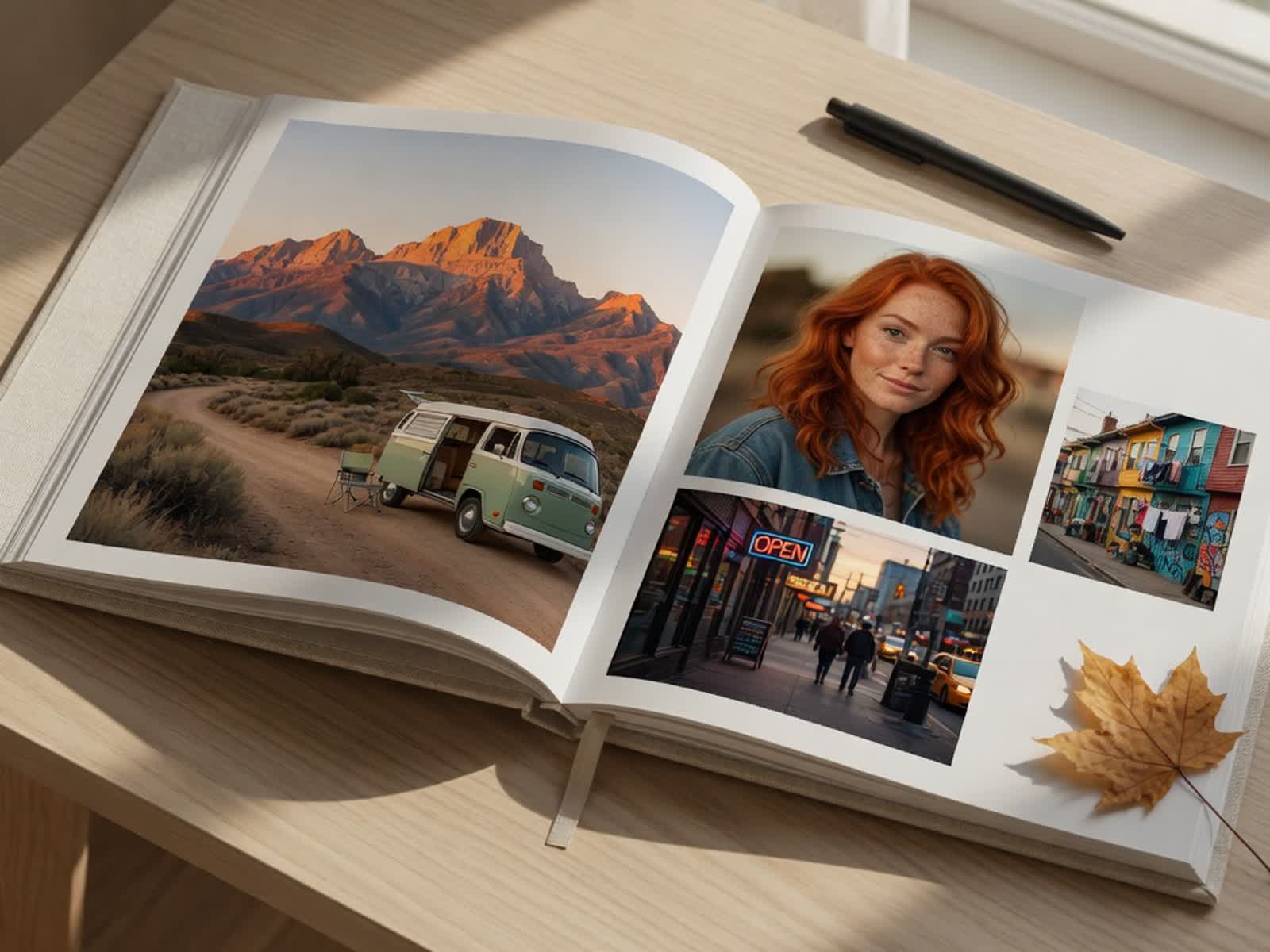
Start on iPhone or iPad. Make the album, then export Archive when the story is right. Free, no account, nothing uploaded until you send the PDF.