
 Pressbook
All postsHow-to
The iPhone's own stickers keep only the subject. In Pressbook, Restore paints the background back, up to the whole photo. Free, on the device.

Can you make a whole photo a sticker on iPhone? Not with Apple's own tools. Apple's iPhone User Guide says you can turn the main subject of a photo into a sticker, so the background stays behind.
Pressbook can keep it. Its cut-out starts from the subject too, but the brush covers the whole photo. Pick Restore and paint, and the background comes back: a corner of it, or all of it. Paint the whole frame and the sticker is the whole photo. It's a Pressbook sticker, for albums, collages and carousels, not for Messages.
It all runs on the device with Apple's Vision framework. No generative model, no network, no upload. The Subject studio is free. It needs no Pro.

The iPhone's own way: the subject only
Apple's sticker maker is in Photos. Open a photo full screen, touch and hold the subject, then release and tap Add Sticker. Add Effect gives the sticker a look, such as Outline or Comic.
The sticker lands in the stickers menu you reach from the keyboard and from Markup, and iCloud keeps it on your other Apple devices. To make one inside a Messages conversation, tap the Add button, then Stickers, then Live Stickers, then Add. Tap a photo and Add again.
That is the quickest way to a sticker for Messages. What you get is the subject without its background.
Keep the whole photo in Pressbook
Select a photo on a page and choose Subject. Cut-out opens with the subject found. Pick Restore and paint over the background to bring it back. Brush sets the size, pinching zooms in for the edges, and Erase takes away anything you didn't mean to keep.
When a photo has no clear subject, a landscape or a plate of food, Cut-out says No clear subject here. Paint over it to pick it. Paint the whole frame and the whole photo is the subject.
In Stickers, Create sticker starts from any photo in your library. Tap a person or Lift everyone, and the Draw tab has the same Erase and Restore over the whole photo.
Open the Subject studio
Subject sits in a photo's tools, right after Filter. It works on any photo in an album, a collage, or a carousel. Pressbook looks for the subject while the photo is selected, so the studio usually opens with it already picked.
The studio has three tabs: Cut-out, Lift and Trace. Cancel and Apply sit at the top, the photo fills the middle, and each tab has a Reset that puts it back the way it was.
Cut-out: who's in it
Cut-out says what Vision found. One person or one dog, and it reads Found the subject. A group, and it counts them and shows each person in a row. Tap a person on the photo, or in the row, to leave them out. Tap again to bring them back.
If nothing clear is found, it says so. Paint over the subject with a finger and pinch to zoom for the edges. Lift and Trace then use what you painted.
Erase and Restore fix the edges. Paint to erase a stray bit of lawn. Paint to bring back a hand the mask trimmed, or the background around it. Brush sets the size, and Undo steps back.
Save it as a sticker
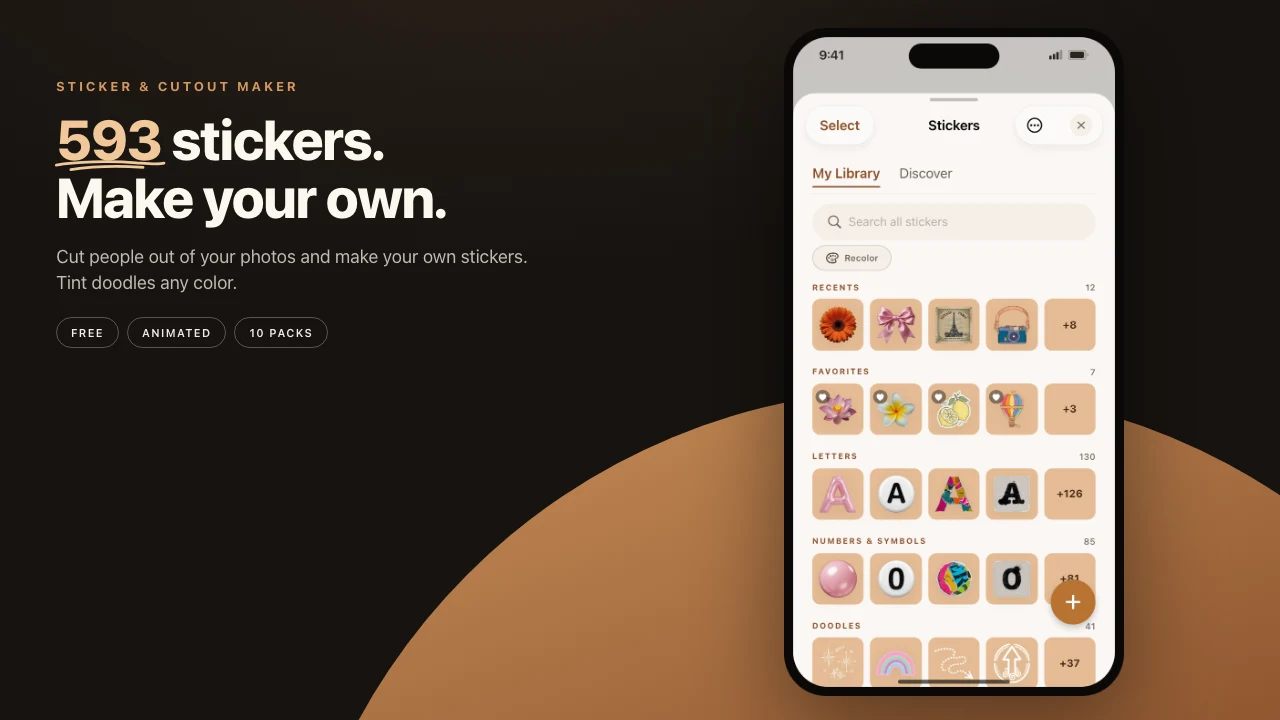
Under the tools, Sticker shows the cut-out as it stands. Save puts it in Stickers, with the edge and shadow you set in Lift, or the usual white outline and shadow if you didn't lift it. Add to page drops it on the page you're editing.
From then on it behaves like any other sticker. Resize it, rotate it, tuck it behind a headline or put it over another photo. Select it and tap Edit to change its border, or to fix the edge in Draw. It waits in your sticker library for the next collage, carousel or album page.
Lift: off the photo
Lift draws the subject again above the photo, so it stands off the page. The first time you open the tab, a thin paper-white edge and a soft shadow are already on.
Lifted is the plain version. Dimmed darkens the photo behind the subject. Mono turns it black and white. Blur throws it softly out of focus. Edge can be none, solid, or dashed, in any colour, and Size sets how wide it is. Shadow sets how far the subject lifts.
Trace: a line round the subject
Trace draws a line round the subject in seven styles: Sketch, Brush, Ribbon, Stitch, Arc, Orbit and Hatch. Pick a pen (Pencil, Crayon, Marker, or Paint), a distance (Close, Medium, or Loose) and a colour, or leave the colour on Auto.
The line goes all the way round and breaks only for a face, text, or the photo's edge. Arc is one sweep on the side with the most room, and it never crosses a face. In a collage reel, a lifted subject or a traced line moves too.
How it works on the device
Pressbook asks Apple's Vision framework four things about the photo: the subject's mask, the faces, body pose for heads turned away from the camera, and any text in the frame. That is what keeps a line off a face and off a sign. No generative model invents an edge, and nothing goes over the network.
The mask is kept large enough for a clean edge in a 600 DPI print. Cut-out masks and lifted subjects are saved inside the project on the device, and the same code draws them on screen and in the export, so a lifted subject prints the way it looks.
On iOS the project file is encrypted on disk when the phone is locked. Nothing about the photo, or the sticker made from it, leaves the device.
Steps
- Select a photo in a Pressbook album, collage, or carousel.
- Choose Subject. The studio opens on Cut-out with the subject found.
- Tap anyone you want to leave out. Fix the edges with Erase and Restore.
- To keep the background, pick Restore and paint over it, up to the whole photo.
- Tap Save to keep the cut-out in Stickers, then Add to page.
- Optional: open Lift for an edge and a shadow, or Trace for a line in one of seven styles.
- Tap Apply.
The same library also holds animated stickers if you turn Discover on. A sticker on a collage is the usual destination. Bokeh and Pan in the Filter tool keep the same subject sharp.
Frequently asked questions
Can I make a whole photo a sticker on iPhone?
Not with Apple's own tools. Apple's iPhone User Guide for iOS 27 says you can turn the main subject of a photo into a sticker, so the background stays behind. In Pressbook, Restore paints the background back into the cut-out, up to the whole photo, for use on Pressbook pages.
How do I make a sticker from a photo on iPhone?
In Photos, open the photo, touch and hold the subject, release, then tap Add Sticker. Add Effect gives it a look such as Outline or Comic. The sticker appears in the stickers menu of the keyboard and Markup, and you can use it in Messages.
How do I cut out or crop a sticker on iPhone?
Photos cuts the subject out for you when you touch and hold it. Pressbook's Cut-out lets you change what it keeps: Erase takes pixels away, Restore brings them back, Brush sets the size and Undo steps back.
Can I edit a sticker after I place it?
In Pressbook, select a cut-out sticker on the page and tap Edit. Border changes the outline, and Draw has Erase and Restore for the edge. Resize and rotate it on the page like any other sticker.
Can I use Pressbook stickers in Messages?
No. Pressbook's stickers are for its albums, collages and carousels. For Messages, make the sticker in Photos with Add Sticker, or in Messages from Stickers.
Start on iPhone or iPad. Make a collage in Pressbook. Free, no account, nothing uploaded.