 Pressbook
All postsHow-to
Bend a caption along an arc, a circle, or a line you draw. Letters stay sharp. The path is typeset, not warped. On the phone.
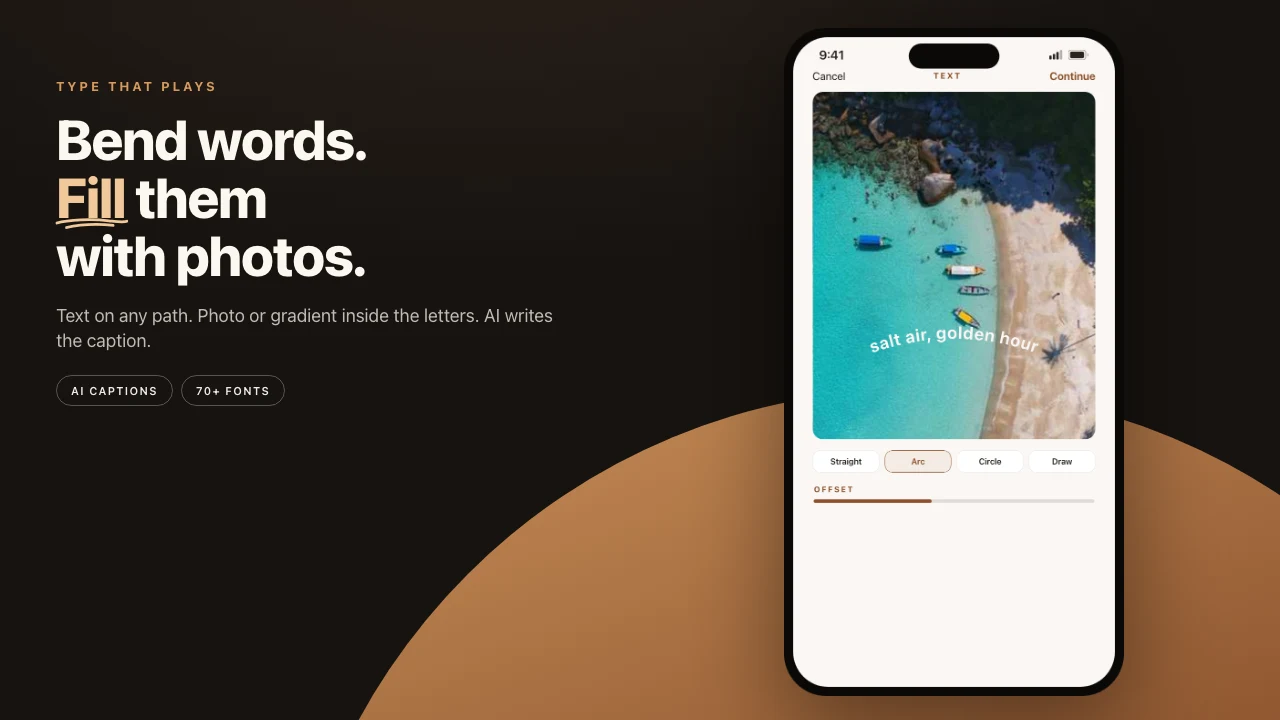
Wrap a name around a portrait. Arc a date across the top of a page. Run a quote in a full circle. In Pressbook a text layer follows a path instead of sitting on a straight baseline.
It is one control on the same canvas as stickers and filters. Core Text places each letter along the path, so the forms stay sharp.

Four paths
A text layer can follow one of four paths.
- Straight. The normal baseline.
- Arc. The line bows. You set how hard it bends and which way.
- Circle. A full ring, sized to a photo.
- Path. Draw a line with a finger. The words follow it.
Two sliders finish the job. Curvature sets how hard the line bends, from a gentle lean to a tight semicircle. Offset slides the whole line along the path, start to end. The same arc can hold a short title at the top or a longer line running most of the way around a photo.
Typeset along the path
Curved text in Pressbook looks set because it is typeset. Core Text measures each letter's real width, then places the letters one after another along the path. Spacing stays correct as the line bends. Letters are not scaled or skewed to fake a curve. Each one sits upright relative to the path under it.
A line you draw with a finger is shaky. Pressbook smooths it with a Catmull-Rom spline that passes through your points, resamples it at even spacing, and runs a light filter to round the jitter while keeping the curve you meant. The text then follows that clean path, even where your finger sped up or slowed down.
Any font, any size
The curve is independent of the type. Pick any font from the library and any size. Bending the baseline does not change the typeface, the weight, or the letterforms. A heavy display face and a light script both curve the same way. The path only moves the baseline the letters sit on.
Or let the phone draft the line
If the layer is empty, Pressbook can write a first pass. On iOS 26 and later, tap Suggest. Apple's Foundation Models, on the device, drafts a short caption from what is in the photo, the scene, and the mood. You edit it, then bend it. When that model is not available, the app offers written lines to pick from instead.
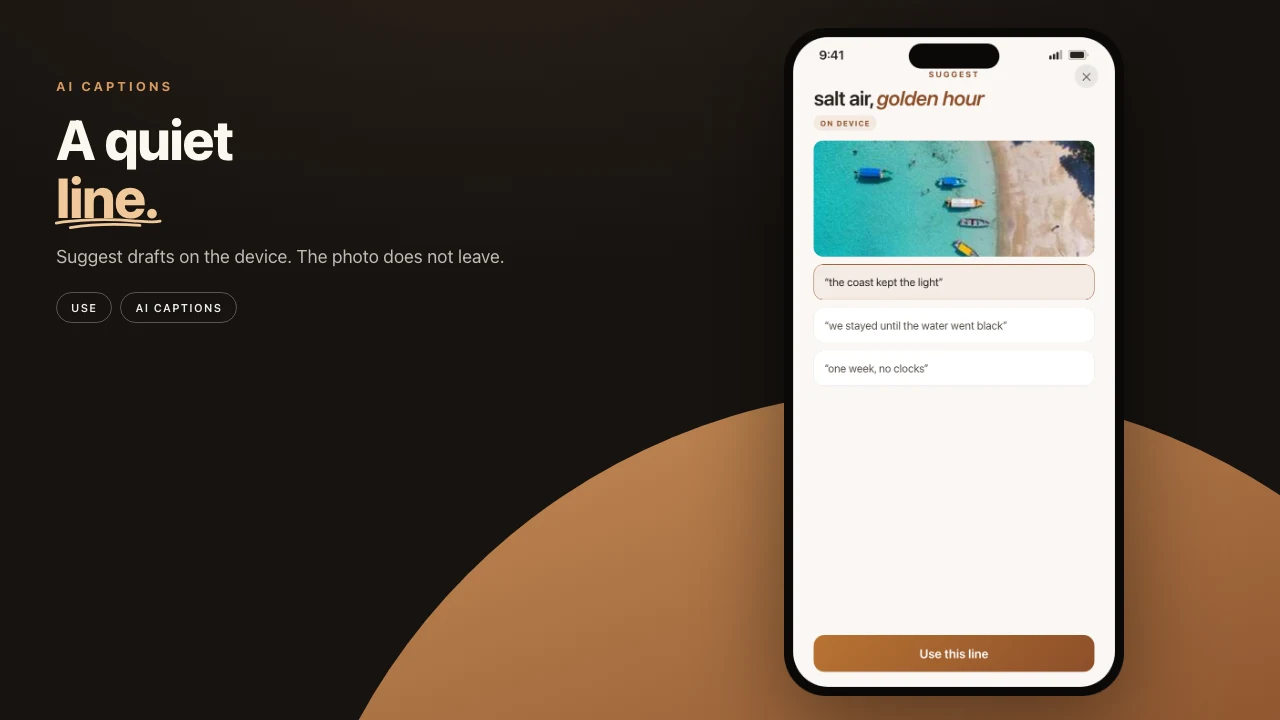
The photo is not uploaded to write the words. Path generation and glyph placement stay local too. Same rule as the rest of the editor.
Steps
- Open a photo in the Pressbook editor and add a text layer.
- Switch the path to Arc, Circle, or a line you draw.
- Type a date, a place, or a name. Drag curvature and offset until it sits.
- Change the font if the face is wrong. The path stays.
- Optional: tap Suggest on iOS 26 if you want a first draft from the photo.
If the line is doing too much, flatten it back to Straight.
While you are in the editor, lift the subject into a sticker and run the line around it. The same canvas builds a collage.
Start on iPhone or iPad. Make a collage in Pressbook. Free, no account, nothing uploaded.