
 Pressbook
All postsHow-to
Drag, resize, or rotate and the canvas snaps centers, equal gaps, and matched angles. On a carousel it also snaps to panel edges.

Drag a photo toward the middle of the page and a thin line appears the instant its center meets the center of the page. Slide it next to another photo and a marker shows up when the gap on one side matches the gap on the other. Rotate it, and it pauses at the exact angle of the photo beside it. Pressbook's smart guides do the small alignment work you would otherwise squint to get right, and they do it while you drag.
They appear only when something is close to lining up, so they help without taking over.

A line when things line up
As you move a layer, Pressbook watches for the alignments worth catching: its center against the page's center, its edges against the edges of other layers, and its center against theirs. When one matches, a guide appears and the layer snaps to it with a light resistance, so you feel it catch and it lands on the line instead of a pixel short. Resize a layer and the same thing happens to its edges, so two photos end up the same width without you typing a number.
Even gaps and matched angles
Two jobs that are tedious by hand get handled for you. Put three or more items in a row and Pressbook marks the moment the spaces between them are equal, so a strip of photos reads as a set rather than a near miss. Rotate a layer and it catches at the angles that look deliberate: flat, square to the page, and the lean of a neighbor. A tilted photo and the one beside it share one angle instead of two that are almost the same.

It follows the canvas you are in
The guides align against whatever you are building. On a single page they use the page and the layers on it. On a carousel, which is one wide canvas sliced into panels, they add the panel edges. A headline or a sticker can sit flush to the seam between two slides, or land centered inside one panel, instead of drifting across the cut where the slice will fall.
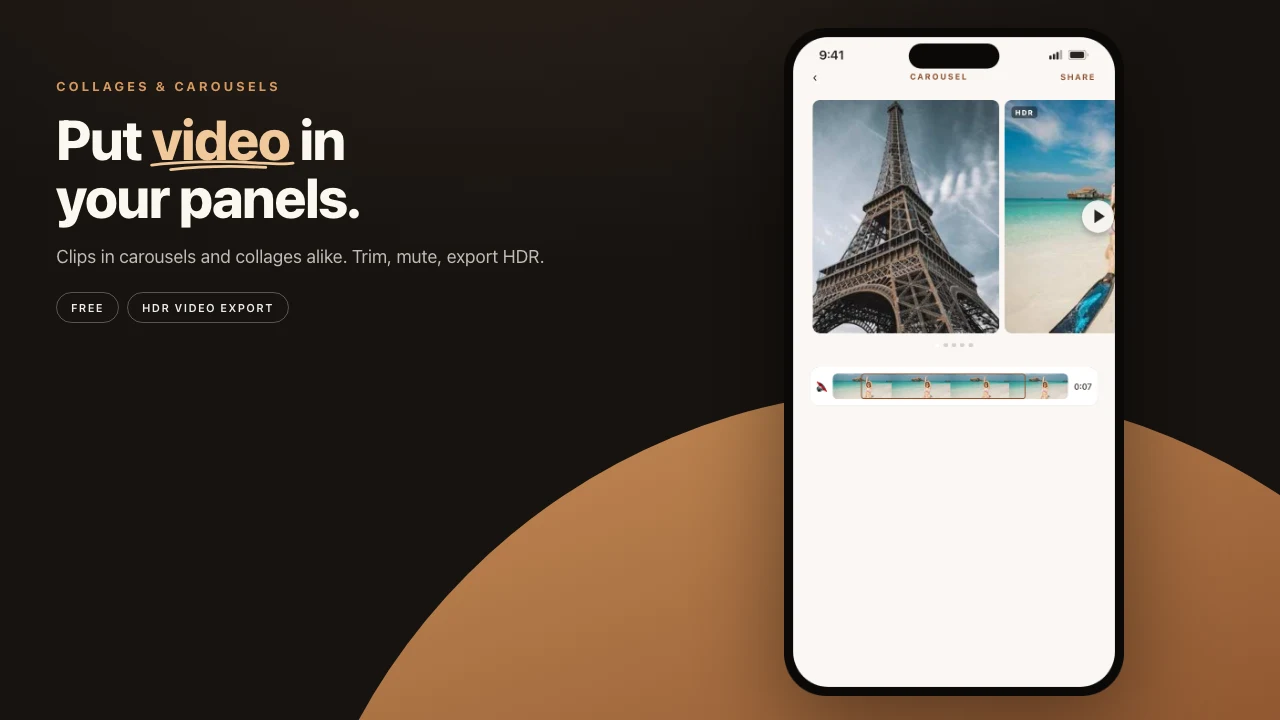
Smart guides are not a separate mode. They work the whole time you are arranging a page, alongside curved text, stickers, and filters, in the same canvas you use to fine-tune a collage or an album. The work happens on the device. No server in the path.
Steps
- Open a collage and drop in four photos.
- Drag one toward the center until the guide catches.
- Line a second up to match its edge.
- Space the row until the equal-gap markers show.
- If you are building a carousel, slide a title toward a panel seam and feel it click to the edge.
Start on iPhone or iPad, iOS 18 and up. Make a collage in Pressbook. Free, no account, nothing uploaded.