
 Pressbook
All postsHow-to
Share > Reel turns a collage or carousel into a Stories-ready video. Every layout moves in its own way, and an album turns like a book. Free, on-device.

You finished a collage or a carousel. You want a short vertical clip for Stories, not another still sitting in Photos.
In Pressbook that export is Reel, on the same Share panel as Send and Share now. It runs on the phone. Every collage and carousel layout moves in its own way. An album turns like a book.
What a Pressbook Reel is
A Reel is a short video made from a finished collage, carousel, or album. It is not a separate Reels studio and not a timeline of stock music. You design the piece first (photos, optional video slots, stickers, text). Then you export motion for social when you want it.
| Source | What the Reel does |
|---|---|
| Collage | Each picture arrives in its own way, then the finished page holds |
| Carousel | It glides from slide to slide, then shows the whole carousel |
| Album | It opens on its cover, turns the pages, and closes on its back cover |
Video inside a layout is a different path. A clip can sit in any photo slot, trim, filter, and export as MP4 with sound. A Reel is the whole piece as one silent, social-length video, including still-only layouts. See add video while you design a collage.
Finish the design first
- Collage. One page: square, story, or post. How to make a collage.
- Carousel. Two to ten panels on one wide canvas, then sliced for the feed. How to make an Instagram carousel.
Open the piece once so crops and type sit where you want. The Reel is a snapshot of the current design, not a second editor.
Open Share
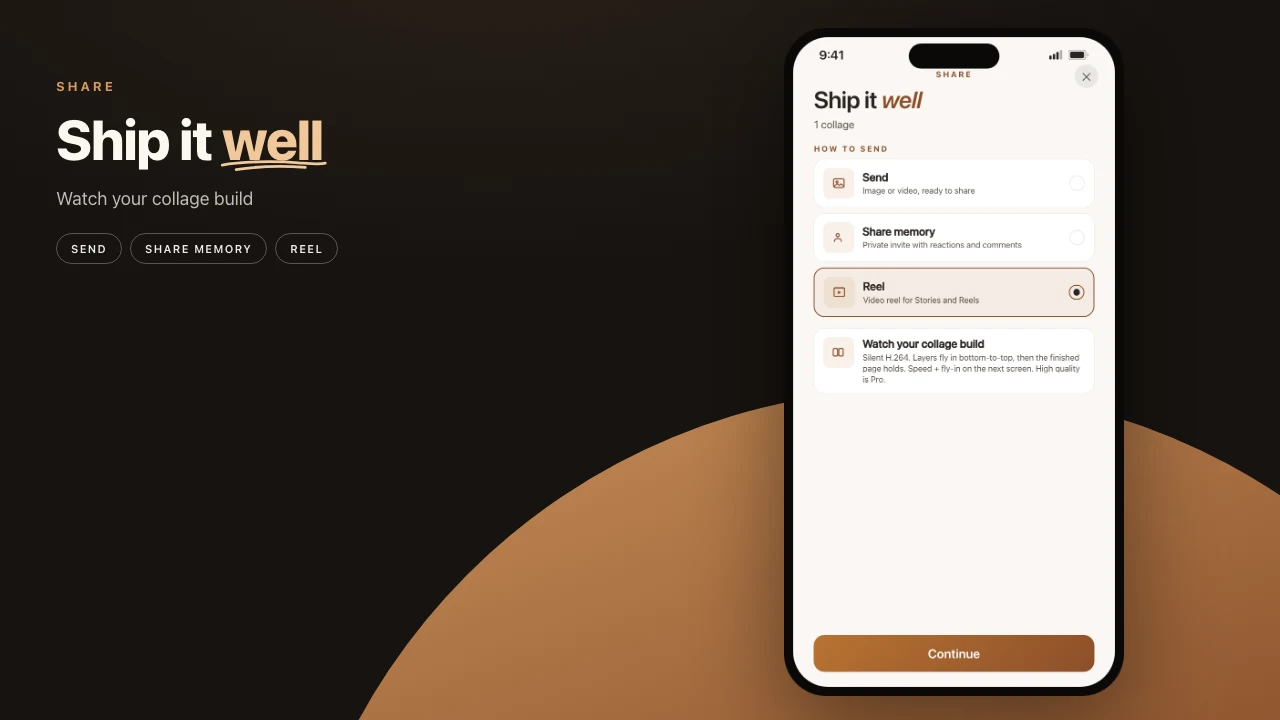
Open the Share panel. On collages and carousels, Send and Reel sit under As a file, below Share now and Memory Capsule.
Albums list PDF, Images, Reel, and Project file. An album Reel opens on the cover and turns like a book, in Full screen or Spread.
Collage: in motion
Select Reel on a collage. The Reel sheet opens and the reel plays right away. Each picture arrives in its own way, then the finished page holds. Some layouts have a signature motion made for them, and the sheet names it. The reel keeps the collage’s own shape: a story collage makes a 9:16 reel, a square collage a square one. Pick a Pace: Calm, Beat, or Snap.
Use a collage Reel when one composed frame is the post. Birthday layout. Trip grid. Story-sized page. The motion is the reveal.
Carousel: slide by slide
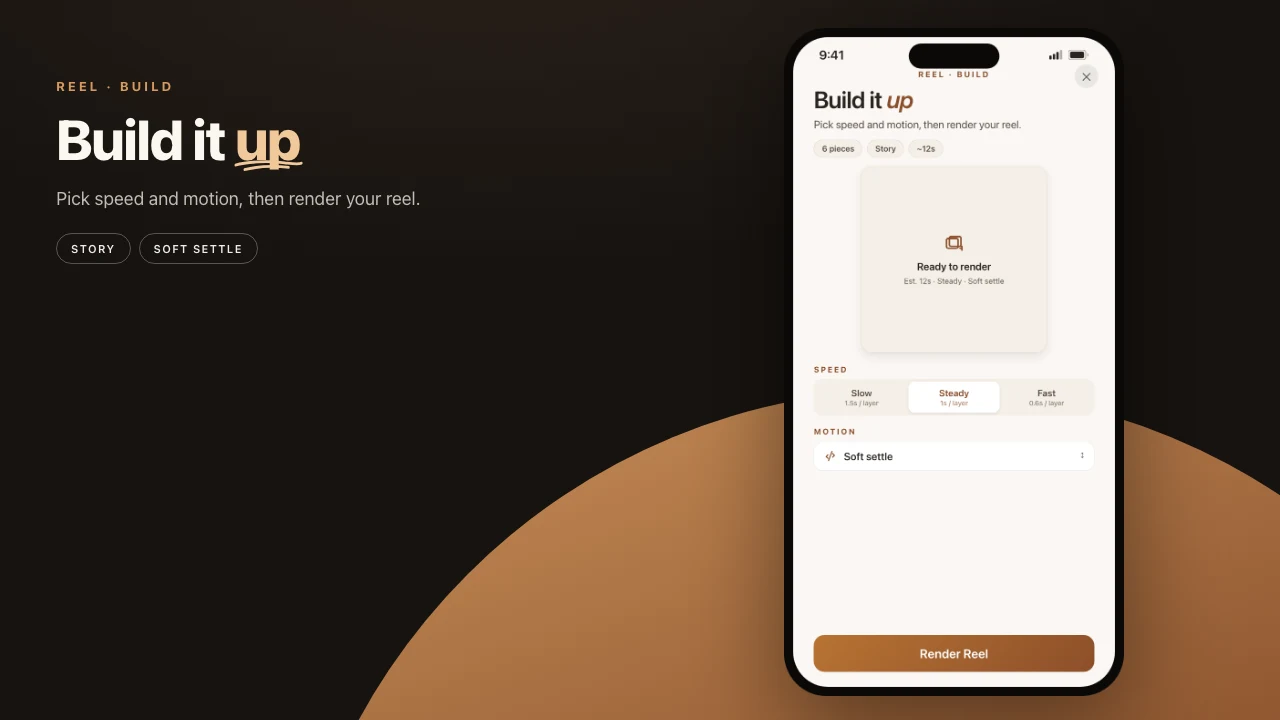
Select Reel on a carousel. The reel glides from slide to slide, then shows the whole carousel. Layouts with a signature motion play it on each slide as it arrives. Pick a Pace, then a Frame: Full screen for 9:16 Stories, or the slides’ own shape, 4:5 or square.
Use a carousel Reel when order matters. Steps. A day in sequence. A last-panel punchline. The reel plays the panels in the order you designed.
If you only need still panels for Instagram’s multi-image upload, stay on Send (or save images). Same design, different output.
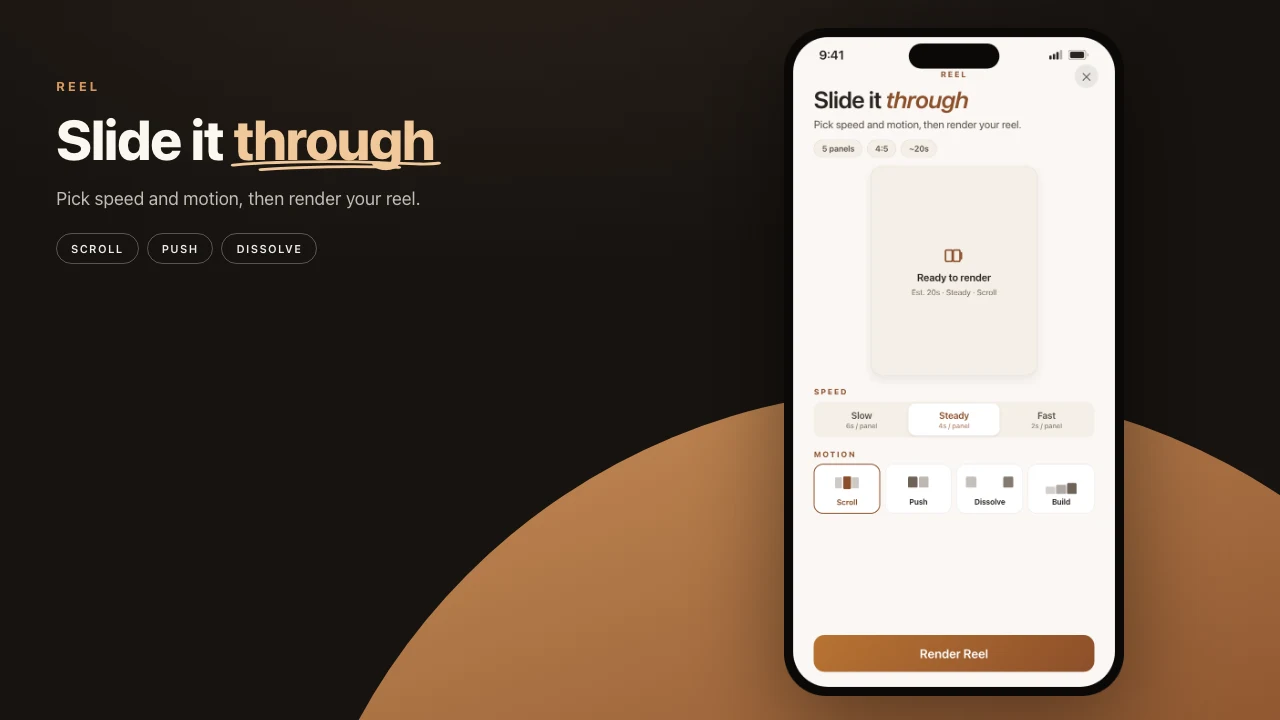
Watch it before you share. Tap the preview for full screen. Then tap Share Reel for the system share sheet, or Save to put the video in Photos. Close the sheet while it renders and the render carries on under the export pill. Leave the app and it pauses until you come back.
Free and on-device
Reels are free. A free reel ends with a two-second Pressbook ending: your photos become the Pressbook mark. Pro removes it, so a Pro reel ends on your design unless you turn the ending on. The design tools themselves are not paywalled.
Reels are silent and cut on the beat. Add a song in Instagram or TikTok after you share.
Render and encode run on the device. Photos are not uploaded to a Pressbook server to produce the file. Optional Discover stickers stay off by default and send only a search word if you turn them on.
Nothing is uploaded to build the clip. If you can finish the collage in airplane mode, you can finish the Reel there too.
Common mistakes
- Looking for Reel only on collages and carousels. An album has one too, and it turns like a book.
- Exporting before the layout is done. Rebuild and shuffle first.
- Expecting a soundtrack. A Reel is silent and cut on the beat, so add music in the app you post to. For a clip’s own sound, use video-in-slot and send the MP4.
- Flattening a ten-panel canvas into one video if the point was the swipe. Keep the still panels for the feed.
A Reel is for Stories and short vertical. A carousel’s still panels are for the feed swipe. You can have both from the same project.
Steps
- Finish a collage, a carousel, or an album.
- Open Share, choose Reel, and tap Continue.
- Watch the reel play. Pick a pace, and a frame if the sheet offers one.
- Tap Share Reel, or Save to keep the video in Photos.
- Post it to Stories and add music there. Keep the still export if the feed wants a swipe.
If you only needed a still, skip Reel. Send the image. The motion export is for when the still is not enough.
Do not start a new project just to make a Reel. Finish the collage or the carousel you already have. Render from that. Two sources of truth is how the clip and the still drift apart.
Collage or carousel to Instagram Story Reel.
Start on iPhone or iPad. Make a collage or a carousel, then render the Reel from the same piece.